

Statuses, assign, delete & bulk actions
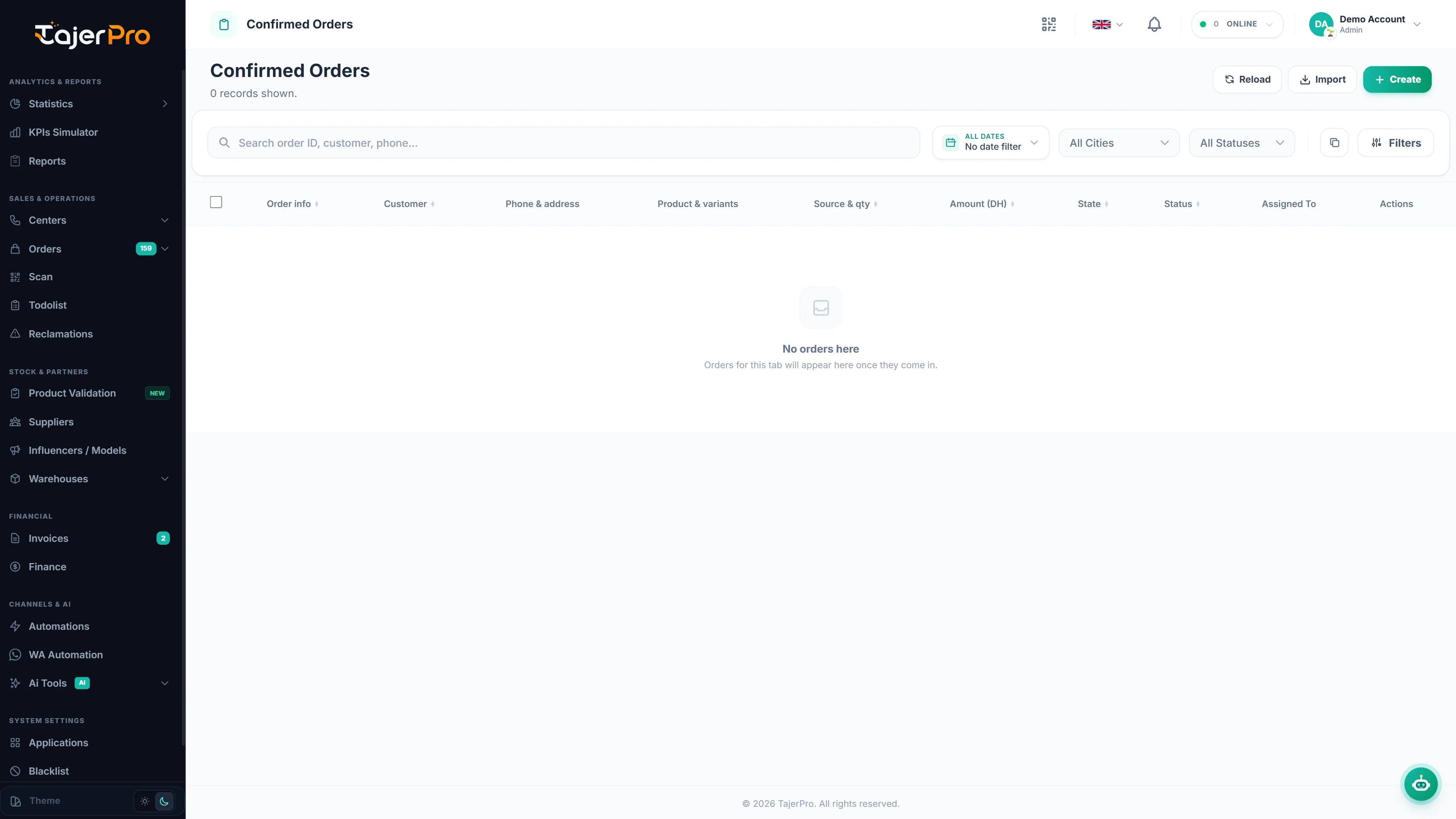
Change an order’s status
Section titled “Change an order’s status”An order’s status tracks where it is in the pipeline (Processing, Confirmed, Shipped, Delivered, Returned, and your own custom statuses). To change it:
- Open the order (edit) and pick a new status, then Save; or
- Select the order in the list and use the bulk status action (below).
Some statuses trigger extra behaviour automatically — for example, delivery-phase statuses feed the Suivi views and the tracking cockpit, and certain statuses ask for a postponed date.
Assign an order
Section titled “Assign an order”Use Assigned to (in the edit drawer, or via bulk assign) to give an order to a specific team member. Agents with the Call Center or Suivi role only see orders assigned to them in their cockpit, so assignment drives their queues.
Delete an order
Section titled “Delete an order”-
In the row’s Actions, open the more (⋯) menu and choose Delete (this button is permission-gated).
-
A confirmation dialog appears — deleting an order is permanent.
-
Confirm to remove the order.
Bulk actions
Section titled “Bulk actions”Select multiple orders with the checkboxes (or select all matching across every page), then act on them together:
- Bulk status — set the same status on all selected orders at once.
- Bulk assign — hand a batch to one team member.
- Export the selection, or generate invoices from it.
Bulk actions respect your permissions and any per-role limits on which statuses you may set.