

Accounts & transfers
An account is a place where your money sits: the cash box, a bank, a money-transfer service, an ads account, or a delivery company that collects cash-on-delivery for you. Every transaction belongs to one account, so you always know how much each one holds.
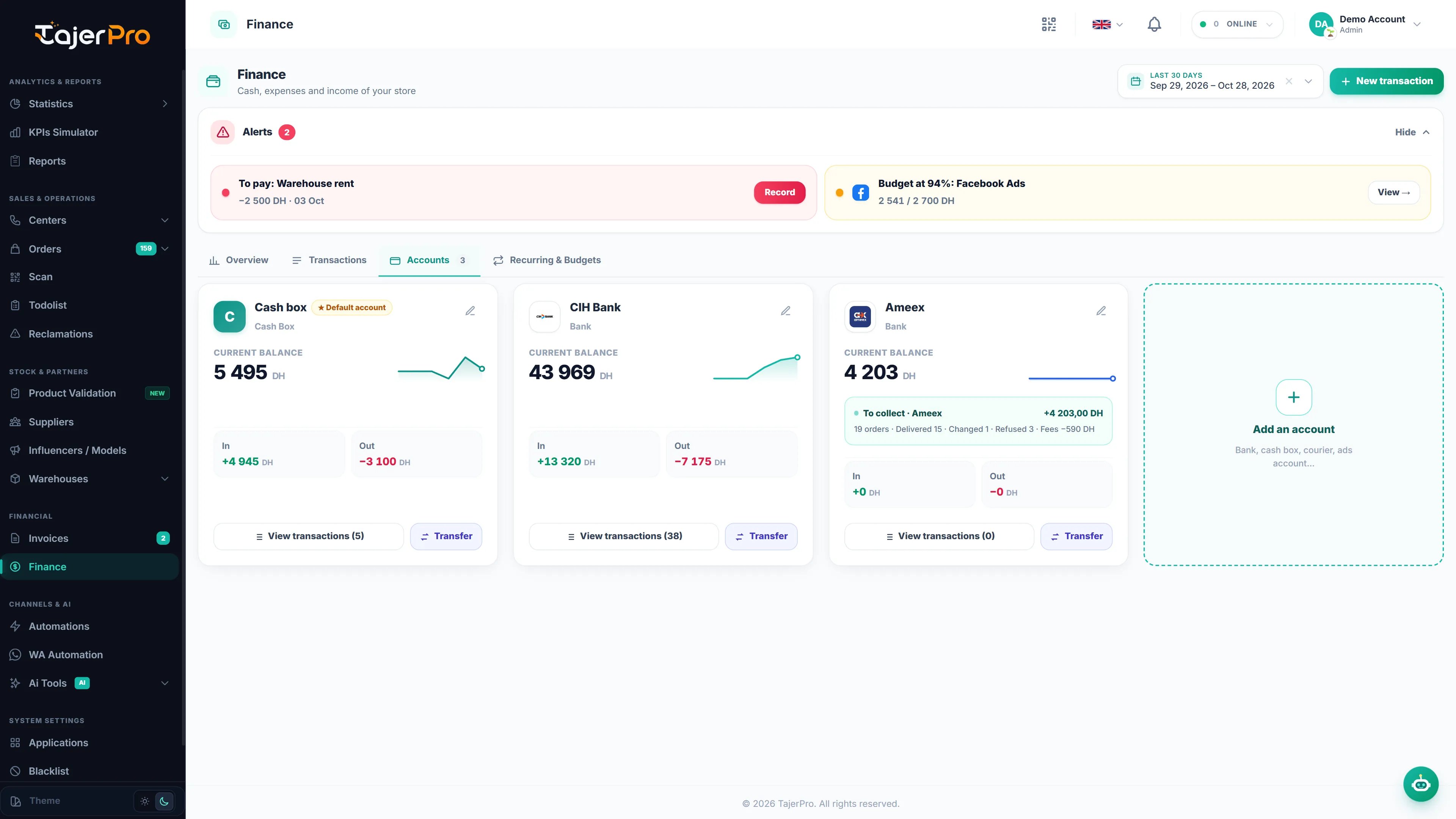
Each card on the Accounts tab shows the current balance, a small trend line of the last months, the money In and Out during the selected period, and the number of transactions. From a card you can View transactions of that account or start a Transfer from it.
Add an account
Section titled “Add an account”- Click Add an account.
- Pick a Logo: a bank or delivery company from the list, or click Upload to use your own image (PNG, JPG or WebP, 5 MB max). Without a logo, the account shows its initial in the Colour you choose.
- Type the Account name.
- Choose its Type: Cash box, Bank, Courier (COD to collect), Ads account, Money transfer / wallet or Other.
- Enter the Opening balance — the money already there before the first transaction you record.
- Turn on Default account if new entries and automatic entries should use it.
- Click Save.
To change an account, click the pencil on its card. Delete removes an account without transactions. An account that has transactions is archived instead, so your history stays complete. The default account cannot be deleted.
Transfers between accounts
Section titled “Transfers between accounts”When you move money from one account to another — for example from the bank to the cash box, or the payout of a courier into your bank — record a Transfer: pick From, To and the amount. Both balances change, and the transfer is never counted as income or expense.
Courier accounts that follow a delivery company
Section titled “Courier accounts that follow a delivery company”A courier account can compute what a delivery company still owes you, from your orders.
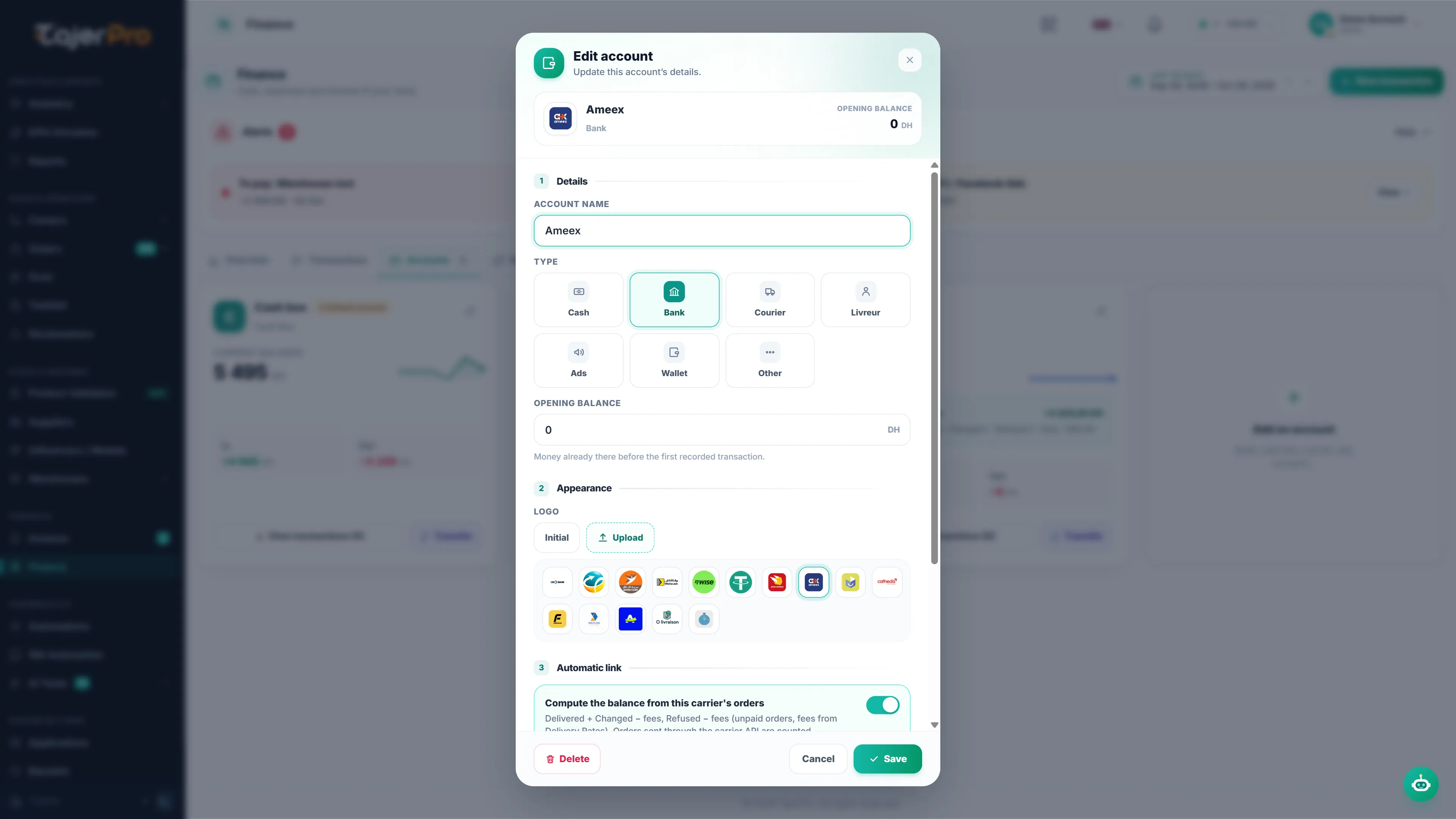
- Add (or edit) an account with a delivery-company logo, or with the Courier (COD to collect) type.
- Tick Compute the balance from this carrier’s orders.
- In Delivery company, pick the company. The list contains every delivery company available in Applications.
- In Payouts received on, pick which of your connected accounts at that company to follow. If none is connected yet, a message offers a Connect link to set it up in Applications first.
- Save.
The card then shows To collect: the amount, the number of orders, and the detail of Delivered, Changed, Refused and Fees. This amount is added to the account balance and to Total cash.
What « To collect » includes
Section titled “What « To collect » includes”What the delivery company still owes you for your orders, after its fees:
| Order status | Amount |
|---|---|
| Delivered | order price − delivery fee |
| Change Delivered | order price − exchange fee |
| Refused | − refusal fee |
- Fees come from your Delivery rates or the carrier’s invoice.
- Orders already in a Paid carrier invoice are left out: the company has paid you for them.
When you mark the company’s invoice as Paid, its orders leave « To collect » and the payout is recorded as income on your default account. So the money moves from « at the courier » to « in your account » without being counted twice.