

Invoices
Invoices lists the invoices of your orders — typically the delivery invoices you reconcile with your carrier — and their payment state.
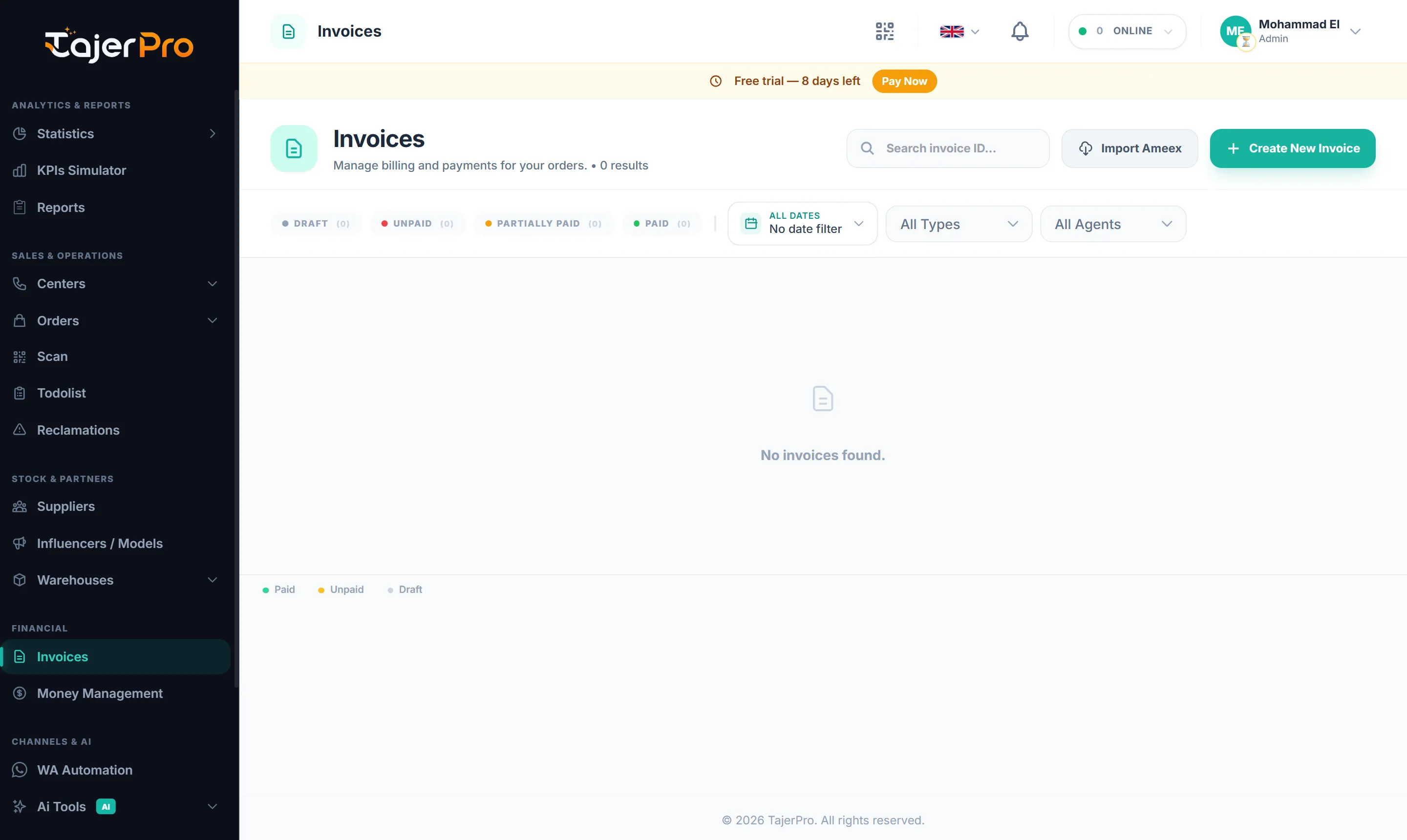
The invoices list
Section titled “The invoices list”Columns: Invoice ID, Date Created, N° Colis (number of parcels), Amount (DH), Type Invoice, Date Paid and Status — Paid, Unpaid, Draft or Cancelled.
- Filter by status (All Statuses), type (All Types) and agent (All Agents), or search.
- Select invoices to Mark as Paid or Download PDFs in one go.
- Open an invoice to see its details and Related Orders, change its Payment Status, then Save Updates or Download PDF.
Invoice types include Standard, Refund and Custom, plus the types you define for your carriers in Settings → Invoice types (their prices come from Settings → Delivery rates — see Delivery rates & SMS).
Generate an invoice from orders
Section titled “Generate an invoice from orders”- In an order list, select the orders and click Invoice in the bulk actions bar. The Generate Invoice window opens.
- Details — your company (name, logo, address, email, phone), Select Type of Invoice, the invoice number and date. Each line shows the client, city, status, Product Price and Delivery Price. The delivery price comes from your rates; you can edit it or click Reset to computed rate. Add a Custom Item for any other cost.
- Preview — check the Subtotal, Delivery Fees, Tax and Grand Total.
- Complete — Save Invoice, Download PDF or Print.
You can also click Create New Invoice on the Invoices page.
Import an Ameex invoice
Section titled “Import an Ameex invoice”If you ship with Ameex, click Import Ameex and upload the Ameex invoice (PDF or HTML, max 15 MB). TajerPro reads it and shows an Import Summary:
- Matched — orders found in TajerPro;
- Skipped (not found) — parcels of the PDF that aren’t in your orders (you can Choose order to link one by hand);
- Already invoiced — orders already linked to another invoice, left untouched.
Click Continue to Invoice to create the invoice from the matched orders.
Payment state on orders
Section titled “Payment state on orders”Each order carries a payment state (e.g. Non Payé / Invoiced / Paid) that follows its invoice. Filter order lists by it — see Search & filters.