

Add an order
You can create an order manually at any time — useful for phone orders or any sale that didn’t come through a connected store.
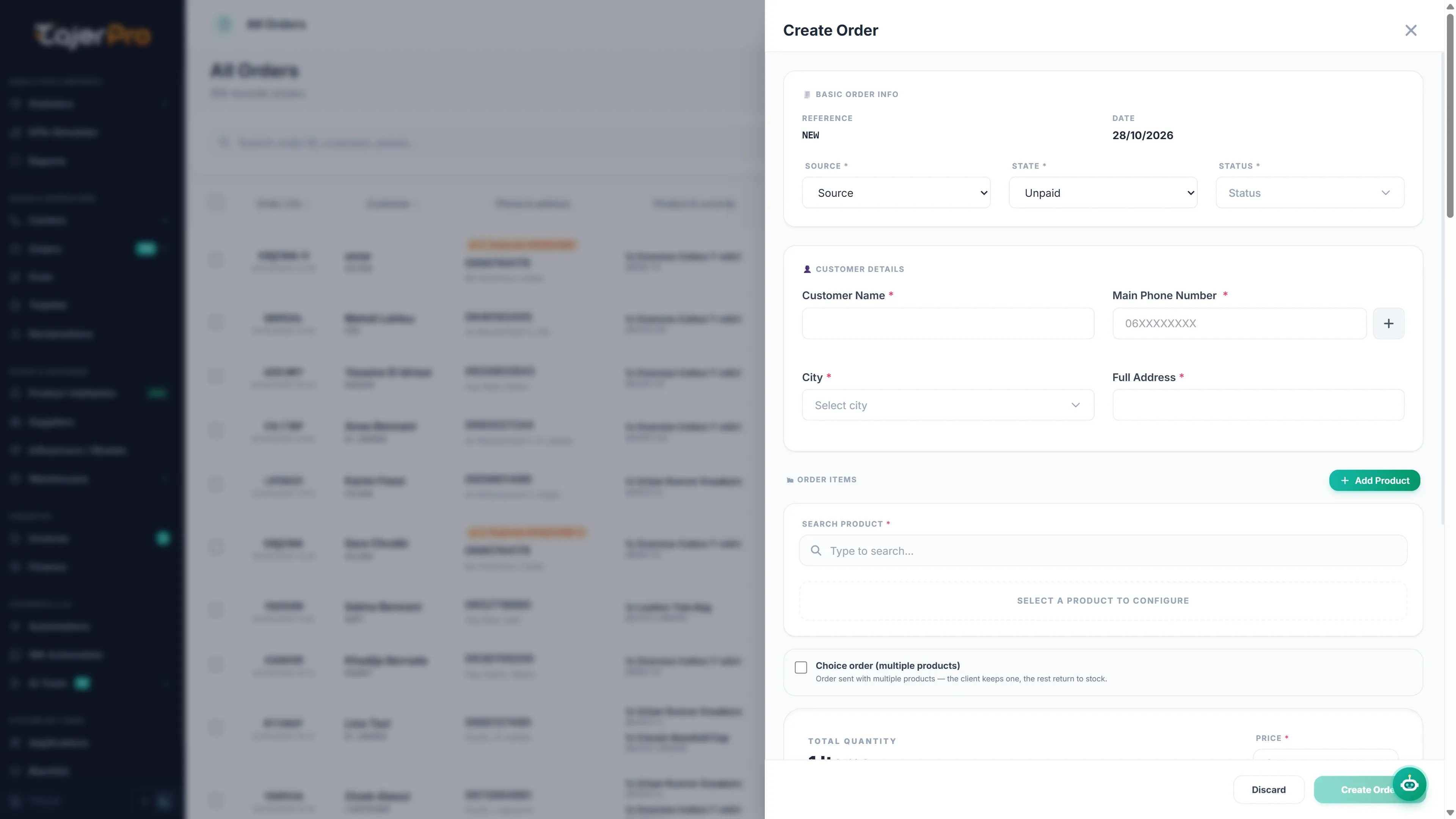
-
Open any order list (e.g. Orders → All Orders) and click + Create (top right).
-
The new order drawer opens. Fill in the customer details:
- Customer name, Phone (and an optional second phone).
- City and Address — start typing the city to pick it from your list.
-
Add one or more products:
- Choose a product, then its color and size (variant) if it has them.
- Set the quantity and, if needed, adjust the unit price.
- Add more lines for multi-product orders. The total updates automatically.
-
Set the order’s starting status (usually Processing), the source, and the payment state if you track it.
-
Click Save. The order appears at the top of the list with a generated order id.
- Orders received from a connected store (WooCommerce, Shopify, YouCan, Lightfunnels) are created automatically — you don’t add those by hand. See Store integrations.
- The fields available depend on your account’s configuration (statuses, sources, cities and payment states are all customizable in Settings).