

Automations
Automations let TajerPro do repetitive work for you. Each automation is a small workflow: a trigger (when something happens to an order), optional conditions and waits, then one or more actions.
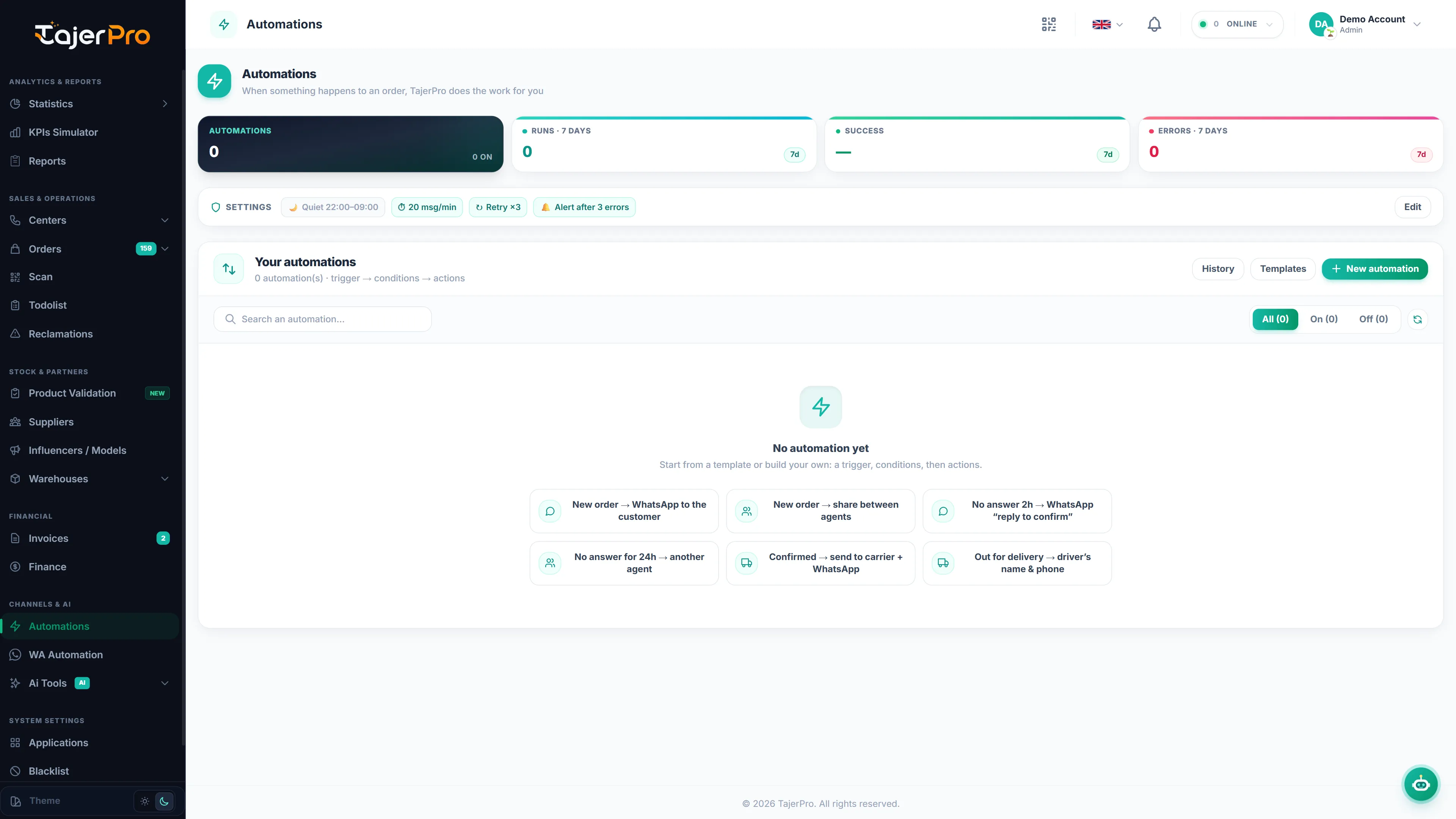
Open it from the sidebar: AI & Automations → Automations (needs the Automations permission; creating and editing needs Edit automations).
The Automations page
Section titled “The Automations page”- Tiles at the top: number of automations (and how many are on), runs, success rate and errors over the last 7 days.
- Your automations: every automation with its flow at a glance
(trigger → step → step), its runs in the last 7 days and its last run.
- Search by name and filter All / Active / Inactive.
- The switch turns an automation on or off.
- The ⋮ menu: Edit, History, Duplicate, Delete.
- History shows every run, step by step, with its result (ok, error, waiting, skipped).
- Settings (the strip under the tiles): quiet hours, send limit, automatic retry and failure alerts for all your automations — see Settings.
- Templates start you from a ready-made automation.
- Each row shows the live version (v3) and a Draft badge when changes are not published yet.
Templates
Section titled “Templates”Ten ready-made flows for a cash-on-delivery store, sorted by category (Confirmation, Delivery, Postponed & refused, Loyalty, Team & safety). Each card shows what the template does and a preview of its steps; Popular and New badges help you start. Search by name.
| Template | What it does |
|---|---|
| New order → WhatsApp to the customer | As soon as an order comes in, send the customer a WhatsApp with the products, the total to pay on delivery and the city (two message versions, product photo, once per customer per hour). |
| New order → share between agents | Every new order is assigned in turn to your agents. |
| No answer 2h → WhatsApp “reply to confirm” | Orders still in No answer after 2 hours: ask the customer on WhatsApp to reply OK to confirm. |
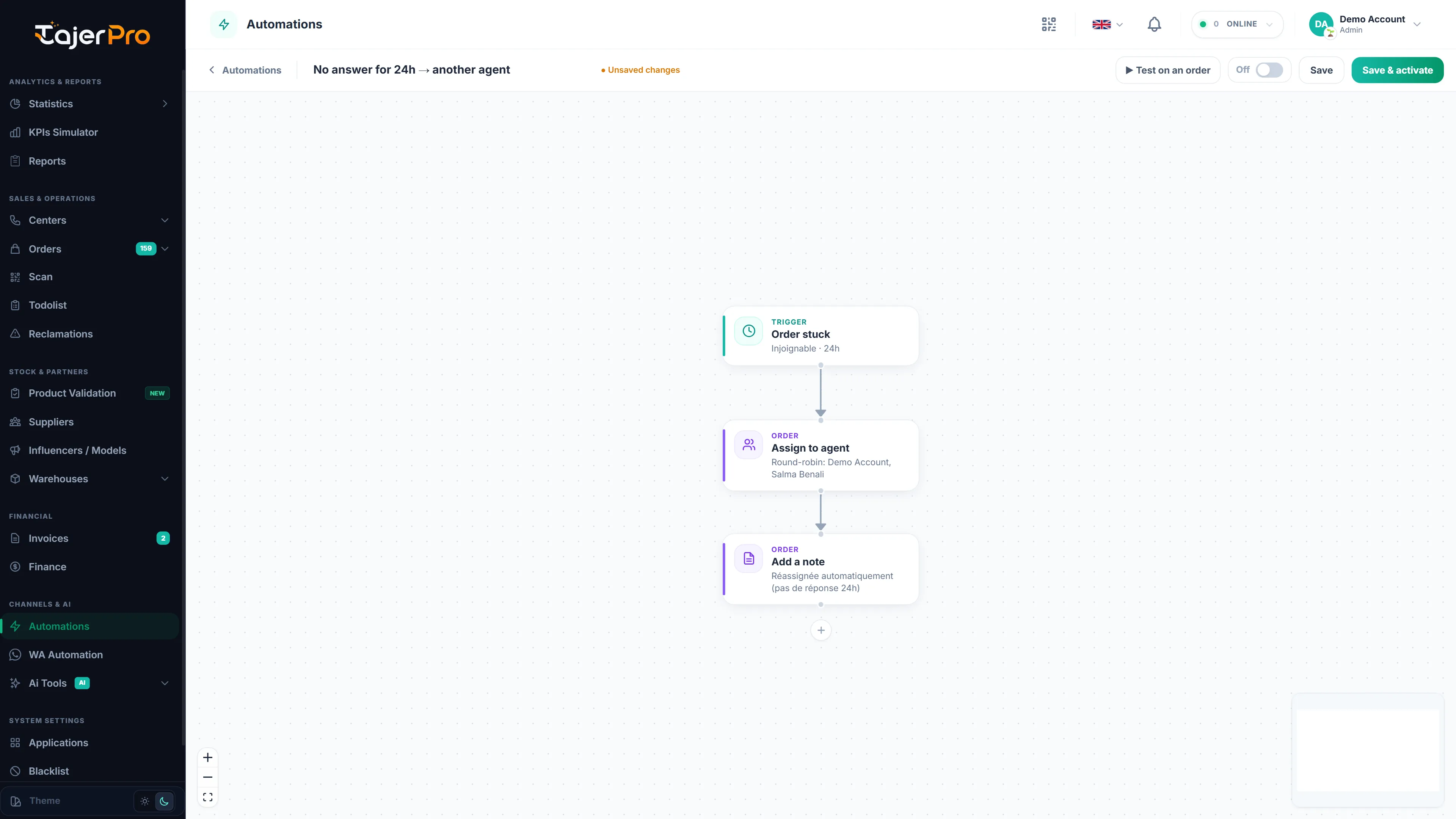
| No answer 24h → another agent | Orders still in No answer after 24 hours are given to other agents, with a note. |
| Confirmed → carrier + WhatsApp | When an order becomes Confirmed, send it to your delivery company, then send the customer a WhatsApp with the tracking number. |
| Out for delivery → driver’s name & phone | When the order is picked up / out for delivery, send the customer the driver’s name and phone and the amount to prepare. |
| Postponed → morning reminder | Every day at 10:00, remind customers with a Postponed order (at most every 48 h per order). |
| Refused → AI message + team alert | 30 minutes after a refusal, an AI-written WhatsApp asks the customer why and offers a new delivery; the team gets a high-priority alert. |
| Delivered → thank-you + feedback WhatsApp | Three hours after delivery, thank the customer and ask for their opinion. |
| Blacklisted customer → note + alert | When a new order comes from a customer with returned or refused orders, add a note and alert the team. |
After picking a template, check the statuses, agents and carrier it uses, then save.
Building an automation
Section titled “Building an automation”Click New automation (or a template). The editor is a full-screen canvas: add blocks with the + under each block, drag them, link them, and click a block to open its settings on the right. The bar at the top (name, History, Test on an order, On / Off, Save, Save & activate) always stays visible.
Triggers (one per automation)
Section titled “Triggers (one per automation)”- Order created: an order is created. Orders coming from: tick the kinds of orders that start it — From my stores (Shopify, YouCan, WooCommerce…, ticked by default for a new automation), From the WhatsApp AI bot, Added by hand (Orders, Call Center…) and Excel import. All ticked = every order. Use Only when to keep only some orders, e.g. one city.
- Status changed: an order moves to a status (optionally from a given status). An order created directly in that status — for example typed by hand as Confirmed — does not start it, unless you turn on Also for orders created in this status.
- Order stuck: an order stays in a status for a number of hours.
- Every day at…: at a set time, for the orders in a status.
The order triggers (order created, status changed, order stuck, every day) also have Only when (optional): rules on city, product, color, size, source, store, status, status type, price, payment status, agent, choice order (À choix) and blacklisted customer. The automation then starts only for the orders that match. Leave it empty for every order.
- New reclamation: a reclamation is opened (optionally for one subject). The steps work on its order when it has one.
- Low stock: a size / color of a product reaches its minimum stock, or a quantity you choose, in all your warehouses or only the ones you pick. It alerts once, then again only after a restock. What is already low when you turn it on is not alerted.
- Agent not working: an agent has orders in a status (e.g. Processing) that nobody changed for
a number of hours, at least N orders (optionally only some agents). It runs once per agent, then
again every N hours while it lasts. Variables:
{agent},{orders_count},{oldest_order},{oldest_since}, and{phone}is the agent’s phone, so Send WhatsApp / Send SMS reach the agent. - Invoice created / imported: a new invoice, for example one imported from a delivery company (optionally of one type).
- New row in Google Sheets: a row is added at the bottom of a tab (Google Forms, a partner, a paste…). Optionally wait until one column is filled. Add Create an order to turn each row into an order.
- Row changed in Google Sheets: a watched column changes (e.g. the Status typed by a driver or a partner) on the row of an order number. See Sync the status from a sheet.
- Webhook received: another app (Zapier, Make, n8n, a form, your website…) calls the automation’s secret URL. See Webhook received.
Low stock, invoices and Agent not working have no order, so only Notify the team, Webhook, Send Telegram, Add a row to Google Sheets, Switch, Wait and Once per customer can follow them (plus WhatsApp / SMS to the agent for Agent not working).
- Condition (If): checks the order and continues on the true or false branch. Rules on city, product, color, size, source, store, status, status type, price, payment status, agent, has a tracking number, is an exchange, choice order, blacklisted customer. Match all rules or any rule.
- Switch (several paths): one path per value instead of a chain of conditions — by city, product, source, status, store, payment status, agent, color, size, price (at least / less than) or any variable (for example a field sent to a webhook). Give each path a name; the first path that matches is taken, and the order goes to Otherwise when none matches. Up to 10 paths.
- Wait: pauses for a number of minutes before the next step.
- Once per customer: lets the automation continue only the first time for a customer (same phone) — or for an order — within a number of hours. First time goes on, Already takes the other branch. Useful to never send the same message twice.
Actions
Section titled “Actions”- Create an order: a new COD order from variables (a sheet row, a webhook…): name, phone, city, address, product (name or SKU), quantity, price, status, source. The steps after it work on the new order.
- Change status — to a chosen status or from a variable (the status name in the text, e.g.
{sheet_new_value}) · Assign to agent (one agent, or in turn between several) · Payment status · Add a note. - Create change / duplicate: makes a new
-C(change) or-D(duplicate) order from this one, with the same customer, address and products, in the status you choose. A change order also puts the original in the Refund Queue, like on the Orders page. - Send WhatsApp: from one of your connected numbers — one message or several templates picked at
random,
{a|b}/[optional]variations, the product photo, also the 2nd phone, round-robin and “send from” numbers. See Automatic messages per status. - AI WhatsApp message: describe what the message should say and its language (Darija, French, Arabic, English); the AI writes it with the order details and sends it. Each message uses AI credits.
- Send SMS: a text message through your own Twilio account — connect it once in Applications › Twilio SMS (or right inside the step). SMS are billed by Twilio.
- Send to carrier: dispatches the order to a delivery company (skipped if it already has a tracking number).
- Notify the team: a notification in the bell, normal or high priority.
- Webhook: posts the order as JSON to your own URL (public addresses only).
- Send Telegram: a free message from your own Telegram bot to you, a teammate or your team group — connect the bot once in Applications › Telegram (see Telegram).
- Google Sheets: add a row at the bottom of a tab, update the row of this order (found by a key column such as the order number — optionally added when missing) or delete it. See Google Sheets.
Google Sheets
Section titled “Google Sheets”- Open Applications › Google Sheets and copy the email shown (TajerPro’s Google account).
- In your sheet: Share → paste the email → Editor → Send.
- Paste the sheet link and click Link the sheet. Test row writes a line to check.
- In the step, pick the sheet from Your linked sheets (or paste a link and click Check access), then choose the tab (empty = the first tab).
- Columns start empty: click Add a column, choose the column of your sheet in the list (its
letter and header, e.g. C · Téléphone), then its value with variables (e.g.
{phone}). Each value is written in its own column; the columns you don’t add stay empty.
Read looks a row up — Look in column + For the value (e.g. column A = {city}) — and gives
the next steps {sheet_found} (yes / no), {sheet_row} and its cells: {sheet.<header>} (e.g.
{sheet.prix_livraison}) and {sheet.A}, {sheet.B}… Use a Switch on the variable
sheet_found to branch.
Update and Delete find the row with Find the row by (a column whose value is, for
example, {order_id}): the first row whose cell equals it. Update writes only the columns of the step — every other cell, and a column with an empty
value, keeps what the sheet has — and can add the row when none is found.
Delete removes the row. A typical setup: Order created → Add, Status changed → Update (the
status column stays right), Status changed → Cancelled → Delete.
Phones keep their leading 0, and values are never turned into formulas.
Sync the status from a sheet
Section titled “Sync the status from a sheet”For a driver or a partner who works in a sheet instead of TajerPro:
- Trigger Row changed in Google Sheets: pick the sheet, the column with the order number and the column to watch (the status).
- Step Change status → Status from a variable →
{sheet_new_value}. The text must be the same name as a TajerPro status (case does not matter).
Changes in the sheet are picked up shortly after they’re made; changes made before you switch the automation on are ignored.
Webhook received
Section titled “Webhook received”The trigger gives the automation a secret URL — copy it from the trigger. Send it a POST with a JSON body:
curl -X POST "YOUR_SECRET_URL" \ -H "Content-Type: application/json" \ -d '{"name":"Ahmed","phone":"0612345678","city":"Casablanca","product":"Sac"}'- Every field becomes a variable:
{name},{phone}, nested ones with dots —{customer.phone},{items.0.title}. The trigger shows the last data received, with each variable. - With an
order_idof your store in the body, the steps work on that order (status, notes, carrier…). Without it, the message steps send to{phone}. - The URL answers only while the automation is on, with a per-minute call limit. Keep it secret; New address makes a new one (the old one stops once you publish). A duplicated automation gets its own address.
Messages, notes and notifications can use variables, filled for each order. They are listed under every text field: click one to add it where the cursor is.
- Customer:
{name},{first_name},{phone},{phone_2},{city},{address}. - Order:
{order_id},{status},{total},{order_date},{reported_date},{tracking},{payment_status},{payment_method},{source},{store}. - Products:
{product}(first one),{products}(all, e.g. 2x Veste, 1x Jean),{quantity},{variant},{color},{size}. - People:
{agent},{agent_phone},{livreur_name},{livreur_phone}. - Always:
{shop}(your company name from Settings) and{today}.
Reclamations add {reclamation_id}, {subject}, {reclamation}; low stock gives {product},
{variant}, {sku}, {stock}, {min_stock}, {warehouse}; invoices give {invoice_id},
{invoice_total}, {parcels}, {invoice_type}; Agent not working gives {agent},
{orders_count}, {oldest_order}, {oldest_since}.
Test before turning it on
Section titled “Test before turning it on”Test on an order: enter an order number and see what the automation would do, step by step (for example “Would send WhatsApp (1 of 2 templates) + image to 2 numbers: …”). The result of each step is listed in the test panel and shown on its block. A test sends and changes nothing, and it answers right away.
Pick one of the latest orders listed in the panel (in the trigger’s status when it has one), or search by order number, name or phone. The full message the customer would get is shown. On the canvas, the path the order takes is lit (orange, animated links) and the steps it does not reach are greyed out.
Then Save & activate.
Draft, publish and versions
Section titled “Draft, publish and versions”Once an automation is on, your changes don’t go live right away:
- Save draft keeps your changes apart. The automation keeps running its live version, and a yellow banner reminds you a draft is waiting. Discard draft goes back to the live version.
- Publish puts the canvas live.
- Every publish is kept as a version (v1, v2, v3…, the last 30). Versions lists them with the date and who published; Open in the editor loads an old version on the canvas — publish it to put it back live.
An automation that is off has the usual Save and Save & activate buttons (they publish).
WhatsApp buttons (Business API)
Section titled “WhatsApp buttons (Business API)”With a number linked through the WhatsApp Business API (WhatsApp app › Link a WhatsApp number), the Send WhatsApp step has Send with › Business API:
- Approved template — a template approved in Meta’s WhatsApp Manager. It works with any customer at
any time. Fill its variables (
{{1}},{{2}}…) with the order fields. Its quick reply buttons become outputs of the step; link and call buttons are sent but report nothing. - Interactive — a free message. WhatsApp only accepts it within 24 h of the customer’s last
message. Four types:
- Buttons: up to 3 reply buttons (or one link).
- List: a menu of up to 10 choices (each is an output).
- Ask location: the customer shares his location → output 📍 with
{latitude},{longitude},{location_address}and{location_url}(Google Maps link). - Flow: a WhatsApp form made in Meta (WhatsApp Manager › Flows, enter its Flow ID) → output 📝
when it is sent, each field as
{flow.<field name>}.
Template buttons are the ones defined in Meta: quick reply, link (with a variable end), call,
copy code (enter the code, e.g. PROMO10), one-time password (enter the code) and Flow.
Catalog / product buttons are not supported (they need a Meta catalog).
Each reply button is an output: link the steps to run when the customer taps it (e.g. Confirm →
status Confirmed, Cancel → status Cancelled). ⏱ No reply runs when nobody tapped within
Wait for a click (24 h by default) and Sent runs right after the send. The tapped text is the
variable {button}.
The trigger WhatsApp button clicked starts an automation whenever a customer taps a button of a Business API message (optionally only a given button text); it works on the customer’s last order.
Buttons need the Business API: messages sent from a QR number have no buttons.
Settings
Section titled “Settings”Automations › Settings applies to all your automations:
| Setting | What it does |
|---|---|
| Quiet hours | No WhatsApp or SMS to customers between two times (Morocco time, e.g. 22:00–09:00). The message waits and leaves at the end of the quiet hours; the steps after it follow. |
| Send limit | At most N messages per minute, all automations together (20 by default), so WhatsApp does not block your number. Extra messages are queued and sent shortly after. |
| Automatic retry | A WhatsApp, SMS, AI WhatsApp, Send to carrier or Webhook step that fails (number offline, carrier down…) is tried again automatically — 3 tries by default, with a longer pause before each new try. Errors a retry can’t fix (no phone, not on WhatsApp) stop right away. |
| Failure alerts | When an automation fails several times in a row (3 by default), the team gets an urgent notification. Optionally a WhatsApp to the admin number, and the automation can be paused until you fix it. |
A run that waits for the quiet hours, the send limit or a retry shows as waiting in History, with the reason and the time.
Good to know
Section titled “Good to know”- Only what happens after you turn it on. An automation reacts to orders created or changed after it was activated; past orders are not replayed. To try it, switch it on first, then change the status of an order.
- Every source of change. Status changes from the Orders page, bulk actions, Call Center, Scan and the delivery companies (automatic carrier updates) all start the Status changed trigger — as long as the carrier status is mapped to a TajerPro status in Status Mapping.
- Once per order. Each event runs an automation at most once for a given order.
- Morocco time. Every day at… and the quiet hours use Morocco time.
- Within about a minute. Actions usually happen within a minute of the event.
- Limits: up to 100 automations per store and 30 blocks per automation.
- Turning an automation off stops its runs that are still waiting.
- WhatsApp messages sent by automations appear in WA Automation → History with the trigger automation.