

Transactions & quick entry
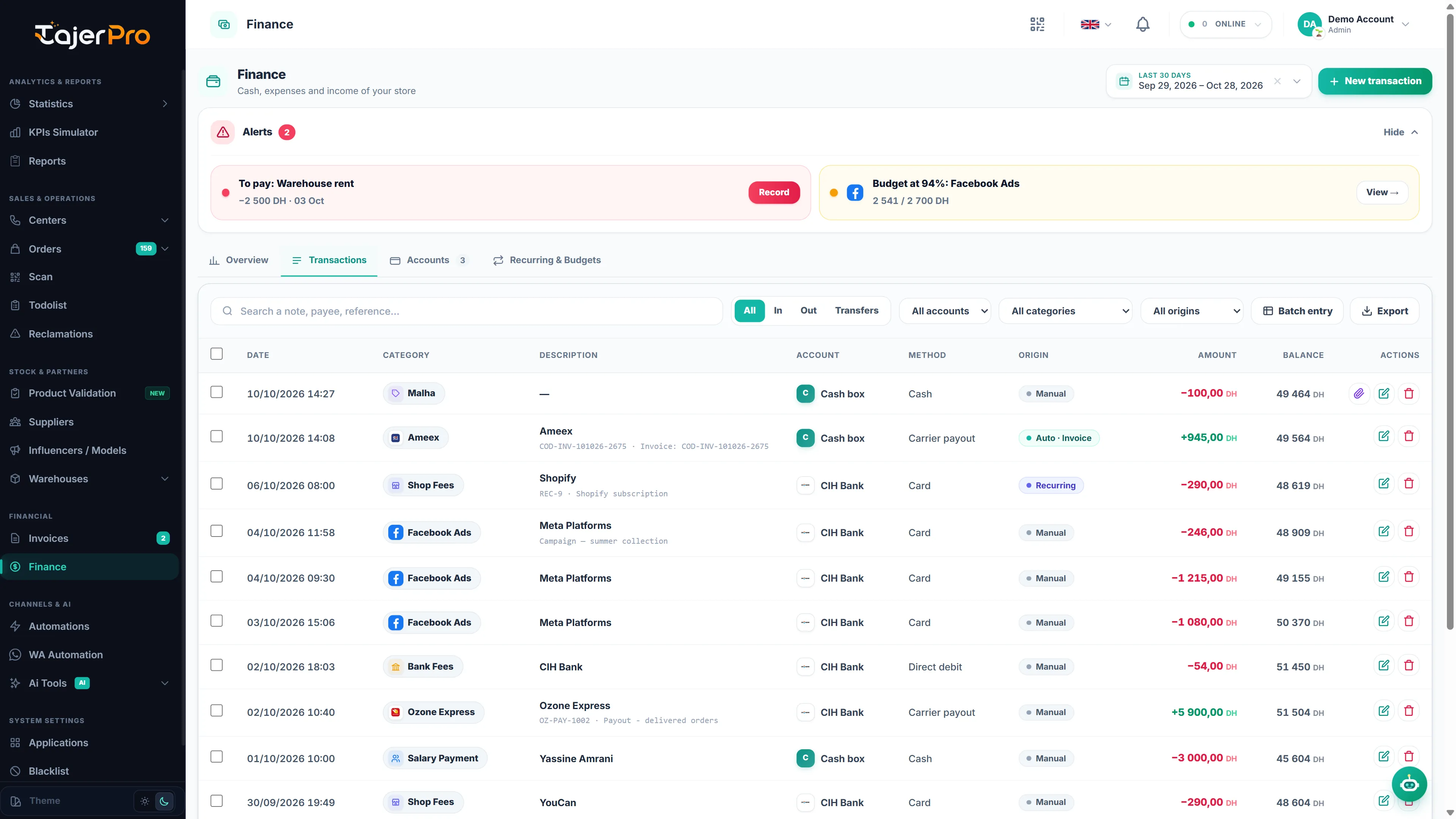
The Transactions tab of Finance is the journal of every movement of money: each line has a date, a category, a description, the account, the payment method, its origin and a signed amount, with the running Balance.
Add an expense, income or transfer
Section titled “Add an expense, income or transfer”Click New transaction at the top of the page. A drawer opens; choose Expense, Income or Transfer at its top.
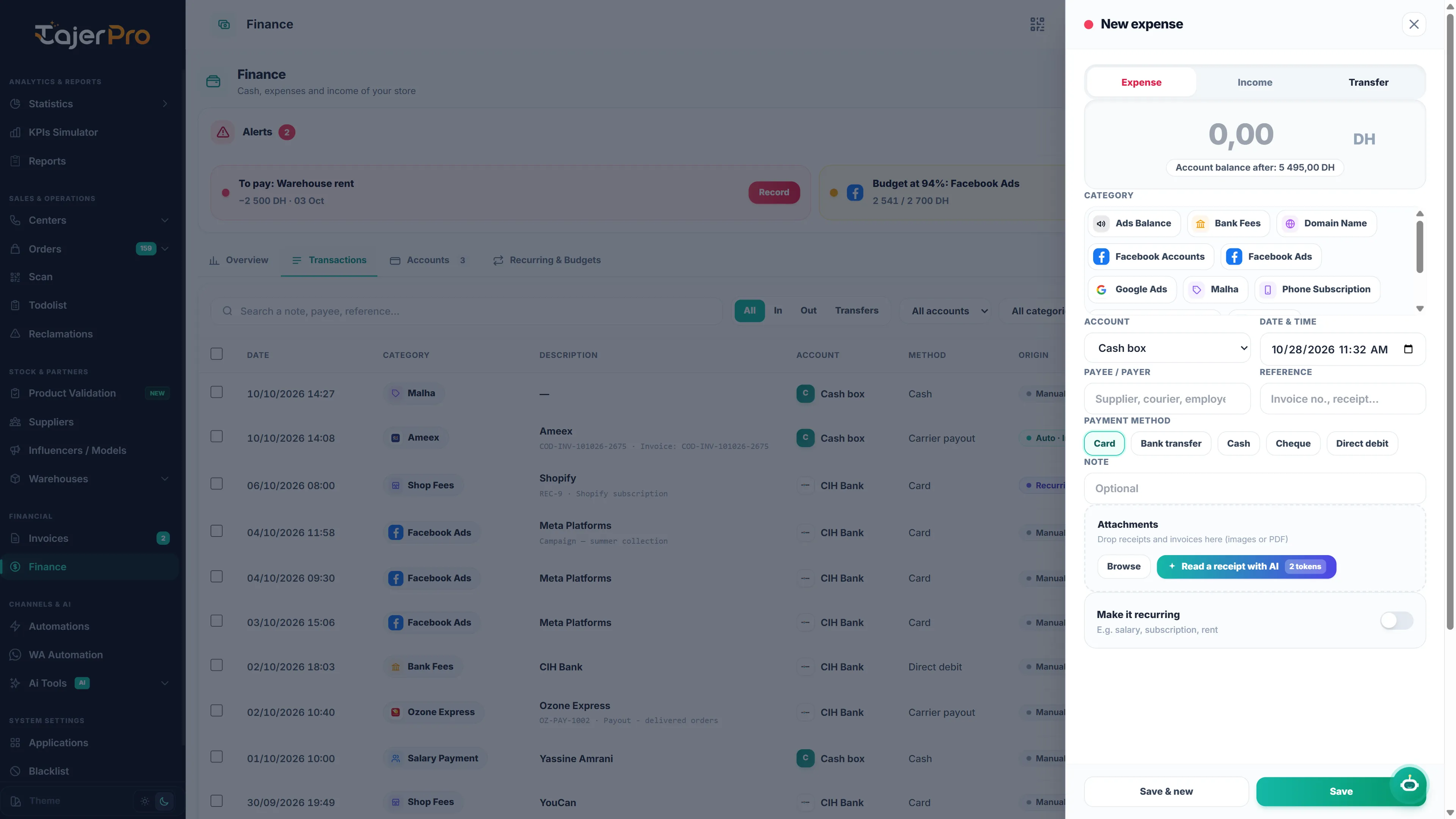
- Type the amount in dirhams.
- Pick a Category (only expense categories for an expense, income categories for income).
- Choose the Account the money leaves or enters. The drawer shows the Account balance after the entry.
- Set the Date & time (now by default).
- Optionally fill the Payee / payer (supplier, courier, employee…), the Payment method (Cash, Bank transfer, Card, Cheque, Direct debit, Carrier payout), a Reference (invoice number, receipt…) and a Note.
- Drop receipts or invoices in Attachments (images or PDF), or click Browse.
- Click Save, or Save & new to keep the drawer open for the next entry.
For a Transfer, pick the From and To accounts instead of a category. A transfer moves money between two of your accounts: it changes their balances but is not counted as income or expense.
Read a receipt with AI
Section titled “Read a receipt with AI”Click Read a receipt with AI in the attachments area and upload a photo or PDF of a receipt, invoice or bank-transfer confirmation (or use one you already attached). The AI fills the amount, date, payee, reference, payment method, a short note and, when it recognises it, the category. Always check the fields before saving.
- The button shows the cost in AI tokens. Tokens are only used when the receipt is actually read. After the reading you see how many tokens were used and how many are left.
- If you do not have enough tokens, a message tells you how many are needed — see AI tokens.
- For a transfer confirmation (CashPlus, Wafacash, bank transfer…), the payee is the beneficiary, not the sender.
Edit, duplicate or delete
Section titled “Edit, duplicate or delete”Click a line to open it. You can change any field and Save, Duplicate it (handy for an expense that comes back with a different amount) or Delete it. Deleting a transfer deletes both of its sides.
Entries created automatically (from a paid carrier invoice or a supplier payment) show a note: editing them here does not change the original invoice.
Find transactions
Section titled “Find transactions”- Search a note, payee or reference.
- Filter by type — All, Money in, Money out or Transfer — and by account (All accounts), category (All categories — it also lists the names used by automatic entries, such as a delivery company like Ameex) and origin (All origins: Manual, Auto · Invoice, Auto · Supplier, Recurring).
- The period comes from the date selector at the top of the page.
The bottom of the list shows how many transactions match, with the total in and out.
Bulk actions
Section titled “Bulk actions”Tick several lines to Change category, Change account or Delete them in one go.
Batch entry
Section titled “Batch entry”Click Batch entry to type many transactions at once in a grid: Tab moves to the next cell, + Row adds a line, and you can paste rows straight from Excel (date, amount, category, payee, note). Click Save N transaction(s) when you are done.
Export
Section titled “Export”Click Export to download the filtered journal as an Excel file.